Over the past few months, more people have started using Knowhere to work with PDFs, web pages, reports, and other messy documents. Our open-source repo has also grown to nearly 2k stars — about 1,877 at the time of writing.
In comments and user feedback, we kept seeing a very natural question:
_Can I use Knowhere as an MCP tool and connect it to my own agent?_
That way, when you’re coding or researching in Cursor, Claude Code, or Codex, you don’t have to keep re-uploading documents, copying summaries, or pasting context over and over again.
We thought that was a good idea. Knowhere is already good at handling complex documents. If it only lived as a web tool, a lot of its value would stay locked inside the browser. The better version is simple: once your documents are organized, any agent should be able to look them up when it needs them.
So we shipped two things:
- Knowhere Notebook — where you manage your document library in the cloud
- Knowhere MCP — how you connect that library to local agents
They share the same account, and they share the same cloud document store.
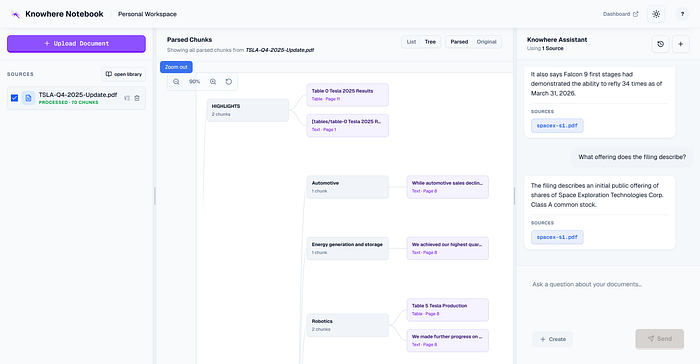
What is Knowhere Notebook?
Think of Knowhere Notebook as a document workspace built for AI.
It isn’t a traditional cloud drive, and it isn’t a normal note-taking app. It’s a place to store, parse, and search complex documents — then make that knowledge available to agents.
You can put in things like:
- PDFs, web pages, papers, and reports
- product docs, technical docs, and API references
- interview notes, research materials, and past drafts
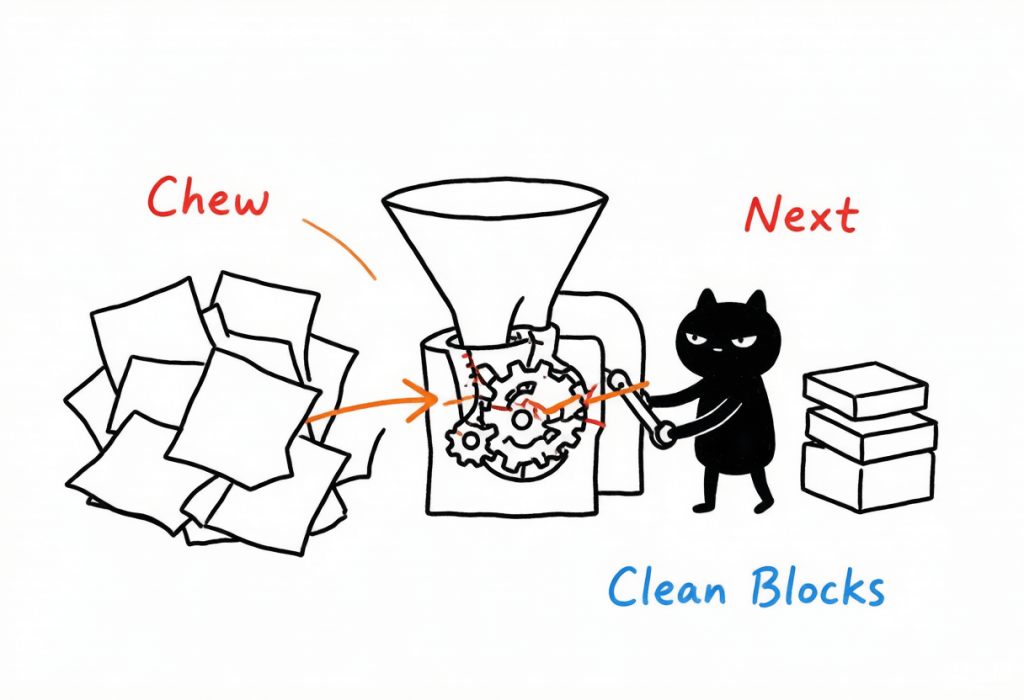
What you get back is not just a pile of files. It’s a knowledge base that AI can actually use: structured parsing, cross-document retrieval, and readable context for agents.
You can try it here: https://notebook.knowhereto.ai/
What is Knowhere MCP?
MCP stands for Model Context Protocol. In plain terms, it’s a standard way for agents to call external tools and data sources.
With Knowhere MCP, you can connect Knowhere to tools that support MCP — including Cursor, Claude Code, Codex, Claude Desktop, and VS Code.
Once it’s connected, your agent doesn’t just “know that Knowhere exists.” It can actually use Knowhere: search documents, inspect outlines, read chunks, grep inside a document, and — with Full access — parse new URLs or local files.
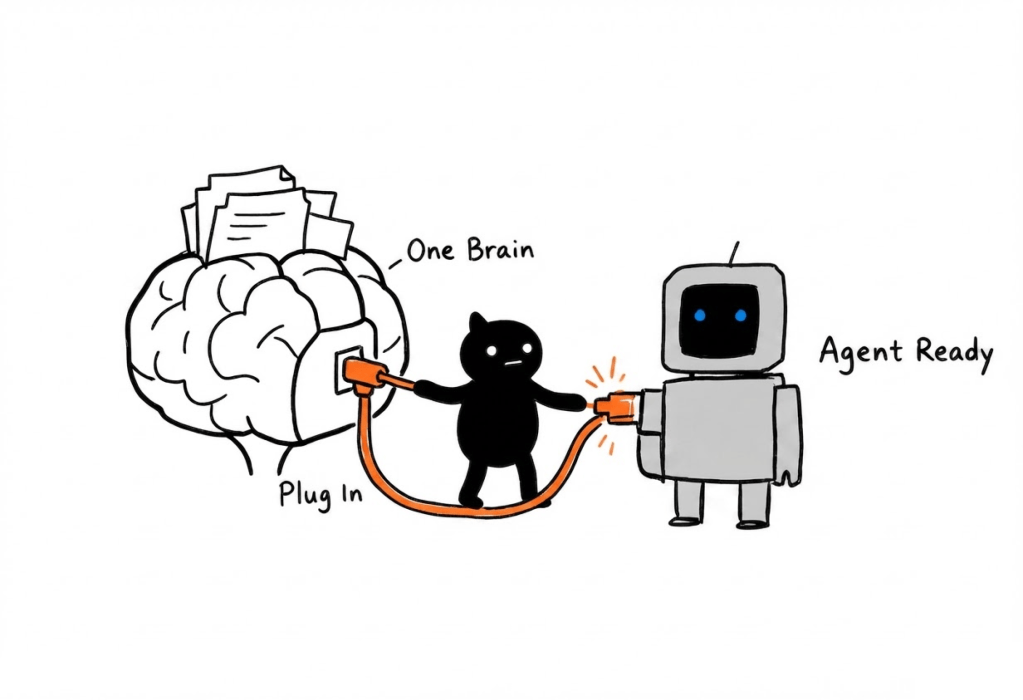
More importantly, Notebook and MCP now share the same Brain.
Documents you maintain in Notebook can be retrieved by your agent through MCP. Documents your agent parses through MCP can also show up back in Knowhere Notebook. To keep your manually organized web library clean, MCP-ingested documents can land in a separate ephemeral category.
In other words:
- Web / Notebook is where you upload, organize, and manage documents
- MCP is how local agents search and work with those documents
- API is for automation and custom workflows
All of them point to the same Knowhere Brain: one cloud store, one cloud retrieval layer. No separate local index.
Why this matters
A lot of people already use agents to write code, look things up, and summarize information. But one of the biggest gaps is still this: the agent doesn’t know your document library.
You may have product docs, technical designs, papers, meeting notes, and old project records scattered across different places. Every time you ask an agent to help, you end up re-explaining the background, copying fragments, and rebuilding context from scratch.
That’s the problem Knowhere Brain is trying to solve.
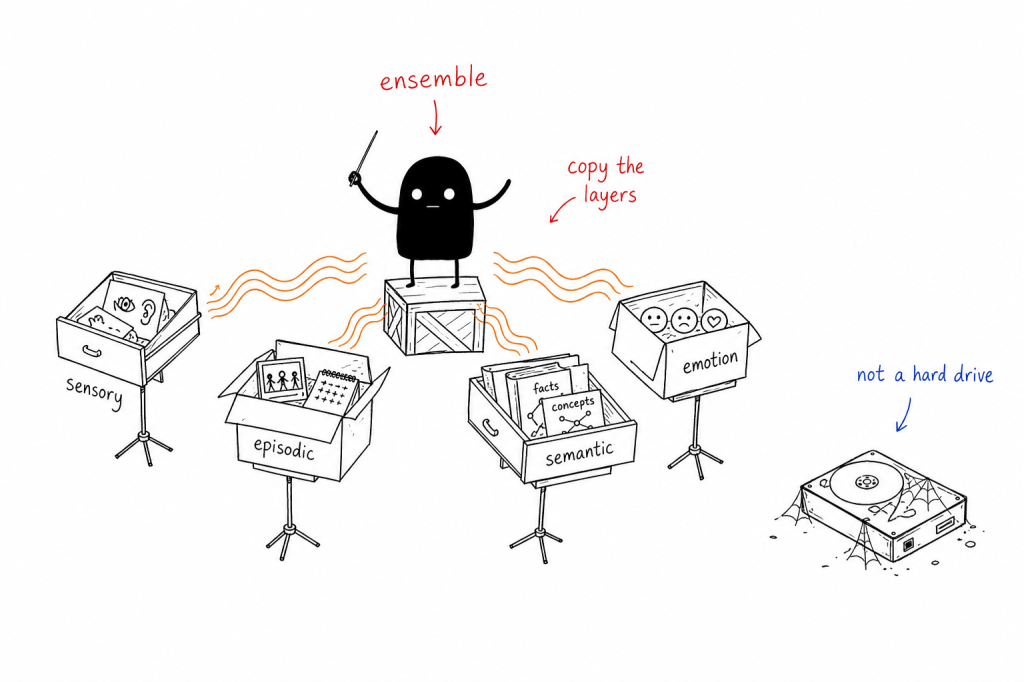
A document only needs to enter the Brain once. After that, whether you use it from the web or from a local agent, you’re working with the same knowledge.
Before, it looked more like this:
- upload one set of docs on the web
- re-provide context inside the agent
- keep MCP-parsed content separate from the web library
- end up with the same material duplicated across tools
Now it looks more like this:
- Notebook and MCP share one document library
- agents can search existing documents directly
- newly parsed documents flow back into the Brain
- all retrieval happens in the cloud
Permissions: Read only vs Full access
We split MCP permissions into two levels. You choose during login, and you can revoke the session later.
Read only
- search documents already in Knowhere Brain
- list documents, view outlines, and read chunks
- grep inside a single document
- cannot parse new documents
- cannot create or delete documents
Full access
- everything above
- parse remote URLs
- parse local files
- parse content from other agent workflows and send it into the Brain
- archive / soft-delete documents when you ask
If you only want the agent to look things up, Read only is enough. Choose Full access only when you want the agent to parse new documents, write into the Brain, or archive documents.
Who is this for?
Developers
Put team docs, API references, and architecture decision records into Knowhere Notebook. While coding, your agent can search those materials directly instead of waiting for you to paste context.
Researchers and product managers
Keep industry reports, competitor notes, interview transcripts, and PRDs in one place. When you’re writing analysis or shaping a proposal, the agent can pull evidence from the library.
People building AI workflows
Use Knowhere as a long-term knowledge layer for agents. Different tools and different sessions can work against the same cloud document library.
Writers and creators
Store references, source materials, and past drafts in Notebook. A writing agent can retrieve what you’ve already collected, which helps reduce factual gaps and keep the voice more consistent.
How to get started
Here’s a quick setup using Cursor. The same idea works for Claude Code, Codex, Claude Desktop, VS Code, and other MCP hosts.
- Prepare your environment
You’ll need Node.js 20.19+, npm 10+, and an MCP host that can run a local stdio MCP server.
- Log in to Knowhere MCP
npx -y @ontos-ai/knowhere-mcp login
This opens the Knowhere login page. After signing in, choose Read only or Full access.
- Add the MCP config in Cursor
Add this to ~/.cursor/mcp.json:
{
“mcpServers”: {
“knowhere”: {
“command”: “npx”,
“args”: [“-y”, “@ontos-ai/knowhere-mcp”]
}
}
}
Save, restart Cursor, and confirm that Knowhere shows up as connected in MCP settings.
- Start using your Brain from the agent
Try prompts like:
- “Search my Knowhere documents for the usage limits of this API.”
- “Read the outline of this report and summarize the parts relevant to the current project.”
- “Parse this local PDF into Knowhere, then write a research brief based on it.”
Full docs are here: https://docs.knowhereto.ai/mcp
One last thing
We’ve always felt that a strong agent isn’t just about a stronger model. It also needs access to the knowledge you’ve been accumulating over time. Otherwise every conversation starts from zero, and every task needs the same background explanation again.
With Knowhere Notebook and Knowhere MCP, Knowhere becomes closer to a second brain that different agents can mount: documents live in the cloud, retrieval happens in the cloud, and you can manage that knowledge from the web or call it from a local agent.
If you’re already using Cursor, Claude Code, or Codex, give Knowhere a try. And if you have ideas for how agents should work with your document library, we’d love to hear them.
- Try Knowhere: https://knowhereto.ai
- Knowhere Notebook: https://notebook.knowhereto.ai
- MCP docs: https://docs.knowhereto.ai/mcp
- GitHub: https://github.com/Ontos-AI/knowhere
Originally published on Medium.
 Blog
Blog 